
Cron Jobs
Cron jobs run scripts or commands on a schedule. The Cron Jobs page lets you create, edit, and control them without editing crontab files directly.
Note
Cron jobs are safely managed in /etc/cron.d/. If you add manual cron jobs via SSH, they will remain untouched in your user's standard crontab.
Cron Job List
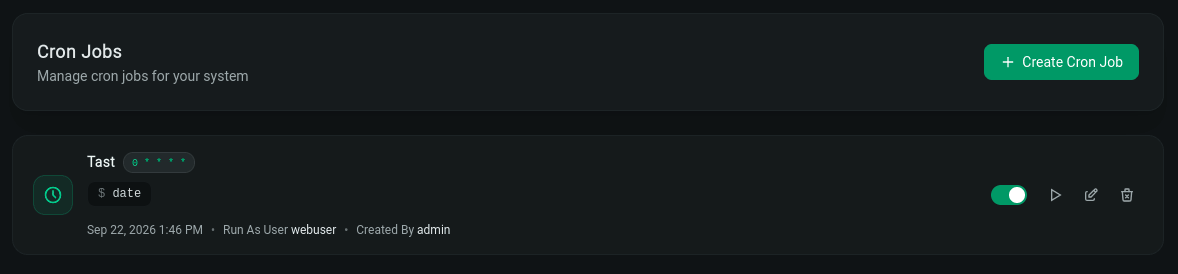
Each job row shows:
- Task Name - a label for the job
- Schedule - the cron expression, shown as a compact set of five fields next to the name
- Command - the shell command that runs
- Created - when the job was created
- Run As User - the system user the command executes as
- Created By - which panel user created it
On the right, each job has four actions:
- Toggle - enable or disable the job. Disabled jobs stay in the list but do not run on schedule
- Run Now - execute the job immediately, regardless of its schedule. Use this to test a command before relying on it
- Edit - open the edit drawer
- Delete - remove the job entirely
Creating a Cron Job
Click Create Cron Job. The drawer asks for:
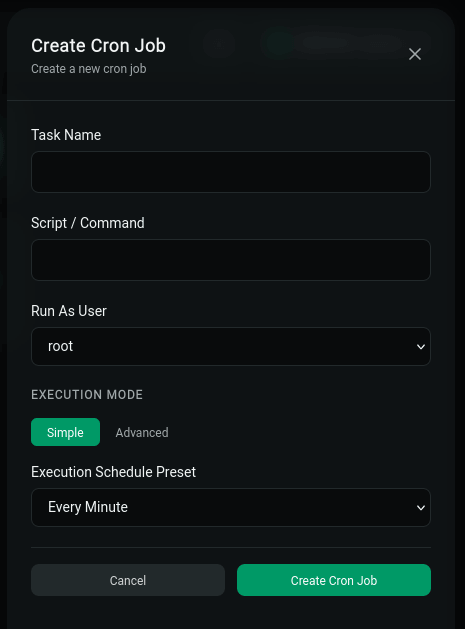
Task Name
A label to identify the job in the list. Use something descriptive, for example Daily database backup or Clear cache.
Script / Command
The shell command to run. This is executed as-is by the shell, so you can use pipes, redirects, and multiple commands separated by && or ;.
For example:
/usr/bin/php8.4 /home/webuser/nexpanel/websites/example.com/public_html/artisan schedule:run
Use full paths to binaries. The cron environment has a minimal PATH, so commands like php may not resolve without the full path.
Run As User
Which system user the command runs as. Options include:
- root - full system access. Use with caution
- webuser - the default user that owns website files
- Any other system user - defined on the server
Choose the least privileged user that can accomplish the task. Running scheduled jobs as root when webuser is enough is unnecessary risk.
Execution Mode
Two options:
Simple
Pick from a list of common schedules:
- Every Minute
- Every 5 Minutes
- Every 15 Minutes
- Every 30 Minutes
- Hourly
- Every 6 Hours
- Every 12 Hours
- Daily (midnight)
- Weekly (Sunday midnight)
- Monthly (1st of the month)
- Yearly
Choose the one that matches your need. This covers most scheduled tasks.
Advanced
Write a custom schedule by filling in each field. All fields default to *, which means "every".
- Minute -
0to59 - Hour -
0to23 - Day -
1to31 - Month -
1to12 - Weekday -
0to6(Sunday to Saturday)
Each field accepts a single value, a range (1-5), a list (1,3,5), or a step (*/15). Use * to mean "any value".
For example:
- Minute
0, Hour3, rest*→ every day at 3:00 AM - Minute
*/15, rest*→ every 15 minutes - Minute
0, Hour9, Weekday1-5→ 9:00 AM, Monday through Friday - Minute
0, Hour0, Day1→ first day of every month at midnight
Use this mode for schedules the presets do not cover.
Editing a Job
Open the edit drawer from the job's action menu. All fields can be changed:
- Task name
- Command
- Run as user
- Execution mode and schedule
Save applies the change immediately. The next run follows the new schedule.
Testing a Job
Use Execute Now from the action menu to execute the job right away. This runs the exact command with the exact user, so it is the best way to confirm your setup works before waiting for the schedule.
The panel does capture the command's output in the UI.
Enabling and Disabling
The toggle switches a job between enabled and disabled. Disabled jobs stay in the list with their configuration intact, but they do not run on schedule.
Use this instead of deleting when you want to pause a job temporarily.
Deleting a Job
Delete removes the job entirely. It will not run again.
Warning
Deleting a cron job is not reversible from the panel. Copy the command somewhere safe first if you might need to recreate it.
Common Tasks
- Run a PHP script on a schedule - set the command to the full path of
phpfollowed by the script path, and run aswebuser - Backup a database nightly - write a shell script that runs
mysqldumpand saves the output, then schedule it daily - Clear application cache hourly - point the command at your app's cache-clearing command and set the schedule to Hourly