
Databases
NexPanel supports MariaDB and PostgreSQL. The Databases page shows which of these are installed, lets you create and manage databases, and gives you a built-in SQL console to run queries.
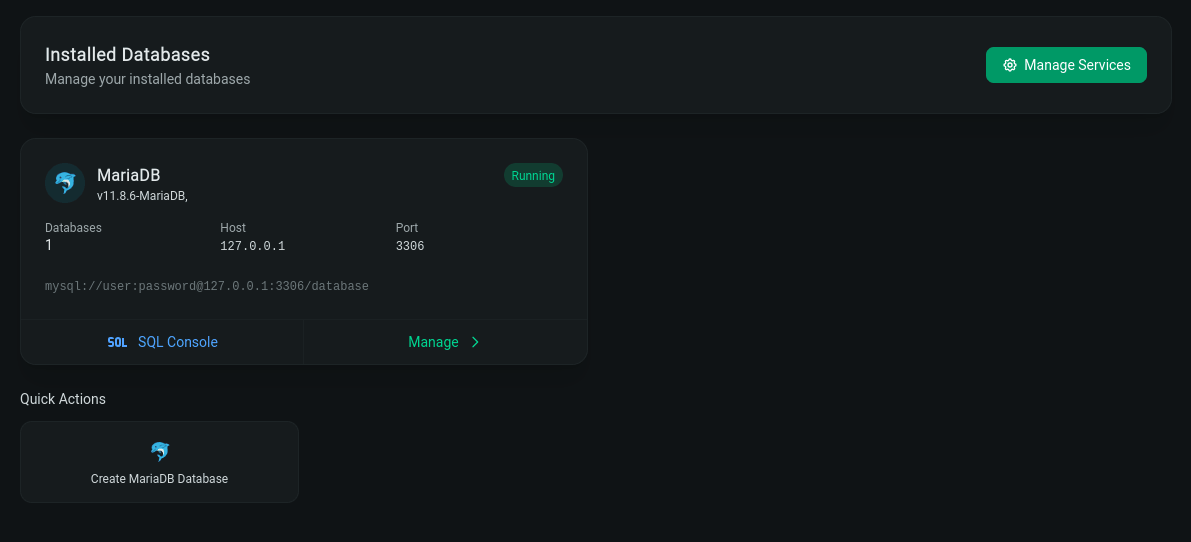
Installed Databases
The top of the page shows a card for each installed database engine. Each card displays:
- Name and version - for example, MariaDB v11.8.6
- Status - Running or Stopped
- Databases - how many databases exist under this engine
- Host - the hostname or IP the engine listens on
- Port - the port the engine listens on
- Connection string - a ready-to-use DSN format for connecting from an app, with placeholders for username, password, and database name
Each card has two actions:
- SQL Console - opens the console
- Manage - open the list of databases for this engine
Click Manage Services at the top of the page to install additional engines, start or stop the running ones, or change engine-level settings. See Services for details.
Quick Actions
Below the engine cards, quick actions let you create a database with one click. The button appears once per installed engine, for example "Create MariaDB Database".
Databases List
Clicking Manage or a quick action opens the list of databases for that engine.

Each row shows:
- Database name
- Database user - the username paired with this database
- Host - where the database is reachable from
- Size - current size on disk
- Created - when the database was created and by which panel user
Each row has two icons on the right:
- SQL - open the SQL console with this database preselected
- Delete - remove the database and its user
The header of the list has two buttons:
- Create Database - open the create drawer
- SQL Console - open the console without a preselected database
Creating a Database
Click Create Database. The drawer asks for:
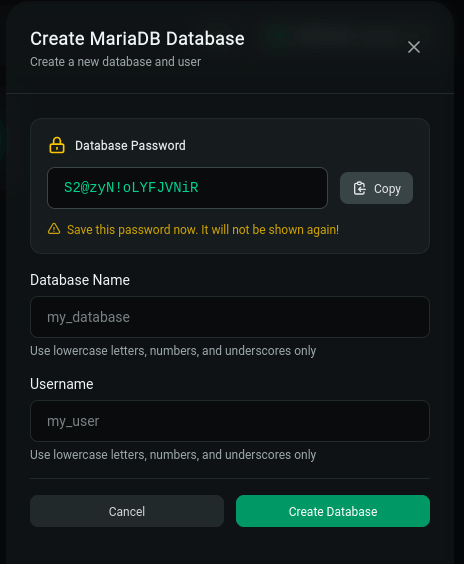
- Database Name - lowercase letters, numbers, and underscores only
- Username - the database user to pair with this database. Same character rules
- Password - generated automatically by the panel
The password is shown once when the drawer opens. Copy it before creating the database, because it will not be shown again.
When you confirm, NexPanel:
- Creates the database
- Creates the user with the generated password
- Grants the user full access to the new database
- Sets the database's character set and collation to the engine defaults
The new database appears in the list immediately.
Deleting a Database
Click the delete icon on a database row. NexPanel asks for confirmation.
Deleting a database removes:
- The database and all tables inside it
- The database user paired with it
This is permanent. If you need the data, back it up from backups page.
Warning
Database deletion cannot be undone from the panel. Make sure you have a backup before confirming.
SQL Console
The SQL console is a built-in query editor. It works with any database on the selected engine.
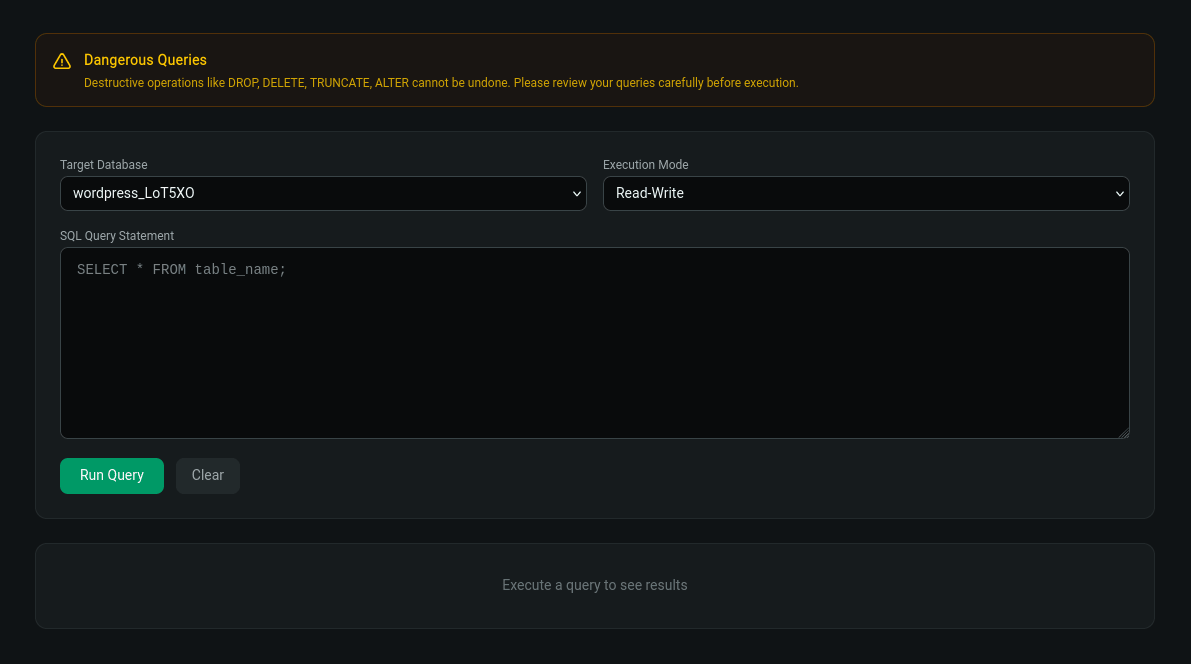
The console has:
- Target Database - pick which database to run the query against
- Execution Mode - Read-Write or Read-Only. Read-Only blocks destructive statements
- SQL Query Statement - the editor where you write the query
- Run Query - execute the query
- Clear - reset the editor
Results appear below the editor as a table. Non-SELECT queries show the number of affected rows.
Use Read-Only mode when exploring data. It prevents accidental UPDATE, DELETE, or DROP statements from running.
Danger
Destructive queries like DROP, DELETE, TRUNCATE, and ALTER cannot be undone. Always review your query before running it in Read-Write mode.
Connection Details
To connect from an external tool or application, use the connection string shown on the engine card:
mysql://user:password@host:port/database
For PostgreSQL, the format is:
postgresql://user:password@host:port/database
Replace the placeholders with your actual credentials. The host is typically 127.0.0.1 when connecting from the same server. External connections require the database engine to be configured to accept them, which is not enabled by default.