
Firewall
The Firewall page lets you control which traffic reaches your server and which does not. It manages rules for both IPv4 and IPv6, applies them at the system level, and shows you exactly what is being allowed or blocked.
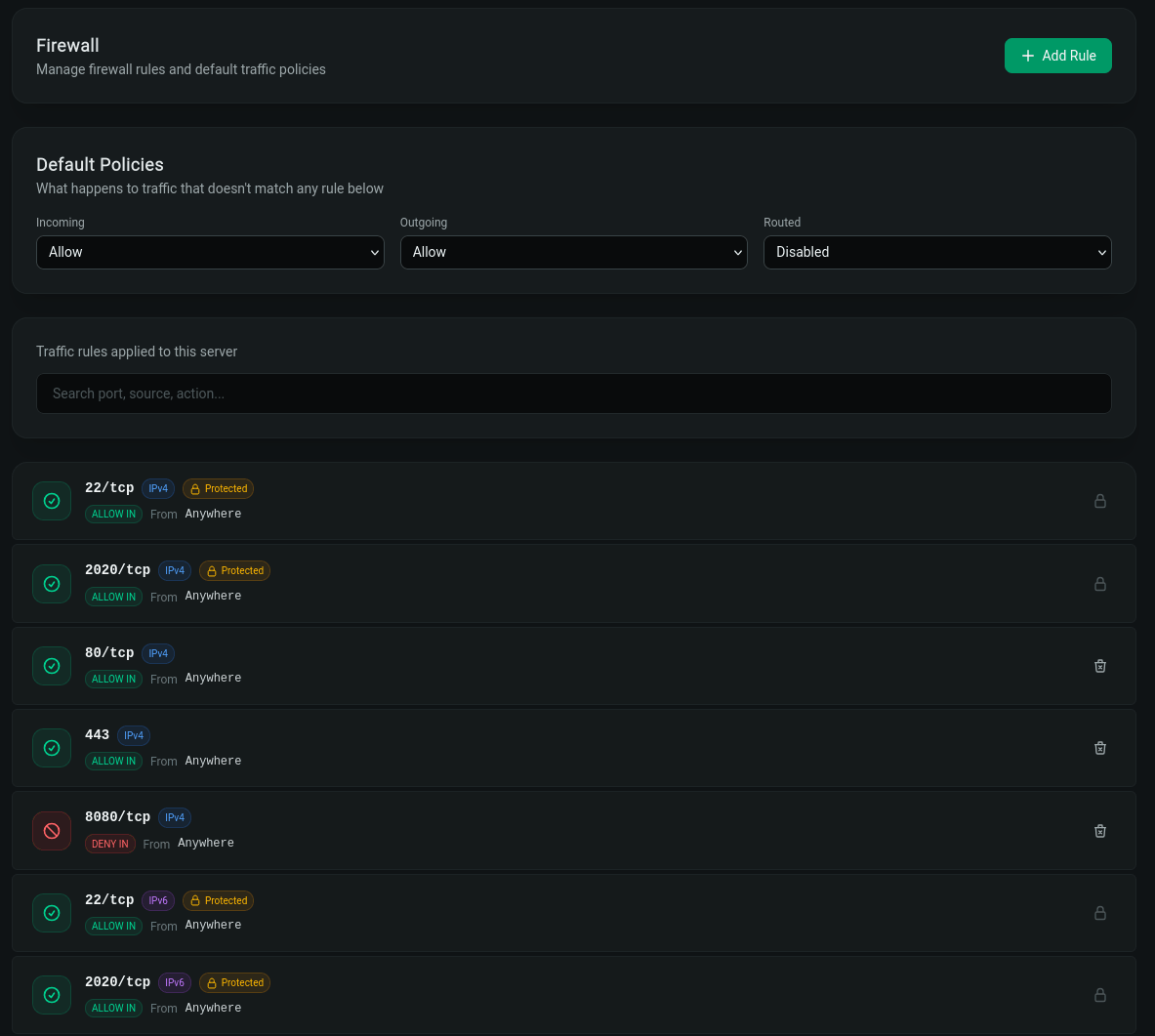
Default Policies
At the top of the page, three dropdowns set the default behavior for traffic that does not match any rule.
- Incoming - what happens to connections coming into the server
- Outgoing - what happens to connections leaving the server
- Routed - whether the server forwards traffic between interfaces
Each can be set to Allow, Deny, or Disabled (for routed only). The defaults are usually fine for a typical server. Only change them if you know why you need to.
Adding a Rule
Click Add Rule to open the rule form.
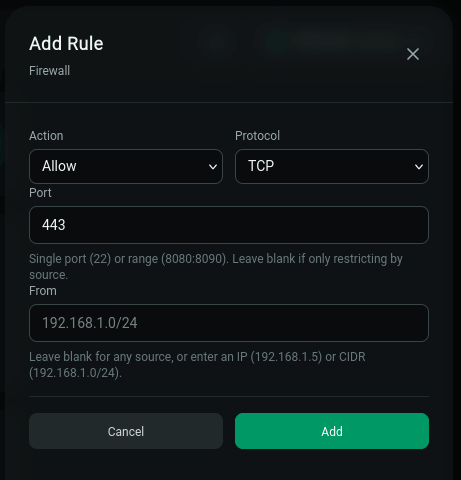
Fields:
- Action - Allow or Deny or Reject
- Protocol - TCP or UDP or Any
- Port - a single port (
443), a range (8080:8090), or blank to match any port when restricting by source only - From - the source address. Leave blank for any source, or enter a single IP (
192.168.1.5) or a CIDR range (192.168.1.0/24)
For example, to allow HTTPS from anywhere:
Action:   Allow
Protocol: TCP
Port:     443
From:     (blank)
To allow a database port only from a specific network:
Action:   Allow
Protocol: TCP
Port:     3306
From:     10.0.0.0/24
Click Add to apply the rule. It takes effect immediately.
Rules List
Below the defaults, the page lists every rule currently applied to the server.
Each row shows:
- Port and protocol - for example
22/tcp - IP version -
IPv4orIPv6 - Action badge -
ALLOW INorDENY IN - Source - the address or range the rule applies to, or
Anywhere - Protected flag - a lock icon on rules that the panel keeps locked to prevent lockouts
Some rules have a lock icon instead of a delete button. Those are protected because removing them would break access to the panel or the server. For example, the SSH port and the panel port are protected to prevent accidentally locking yourself out.
Deleting a Rule
Click the trash icon on any rule to remove it. A confirmation appears before the rule is deleted.
Protected rules cannot be deleted from the panel.
IPv4 and IPv6
Rules are managed separately for IPv4 and IPv6. This means you may see two rules with the same port and action, one for each protocol version.
If your server only uses IPv4, you can ignore the IPv6 rules. If it uses both, make sure you allow the ports you need on both.
Common Tasks
Allow a new service port
Add a rule with Action Allow, Protocol TCP, and the port your service listens on.
Restrict access to an admin port
Set the port to the one you want to protect, and set From to your office IP or VPN range. Add a matching Deny rule for the rest, or set the default Incoming policy to Deny and rely on explicit Allow rules.
Block an abusive IP
Add a rule with Action Deny, leave the Port blank, and set From to the offending IP. This blocks all traffic from that source.
Temporarily open a port for testing
Add an Allow rule, test, and delete it when done. Rules take effect immediately, so there is no need to restart anything.
Notes
- Rules apply at the OS firewall level. They affect all services on the server, not just the panel
- Changes are immediate. There is no separate "apply" step
- The panel keeps a small set of protected rules for its own ports (SSH and the panel interface) so you always retain access
- IPv4 and IPv6 are handled independently. A rule for IPv4 does not affect IPv6 traffic and vice versa
Warning
Always confirm that SSH (usually port 22) is allowed before making changes to the default incoming policy.