
Websites
The Websites page is where you create and manage every site hosted on your server. NexPanel handles the web server configuration, PHP-FPM pool, SSL, and file permissions for you.
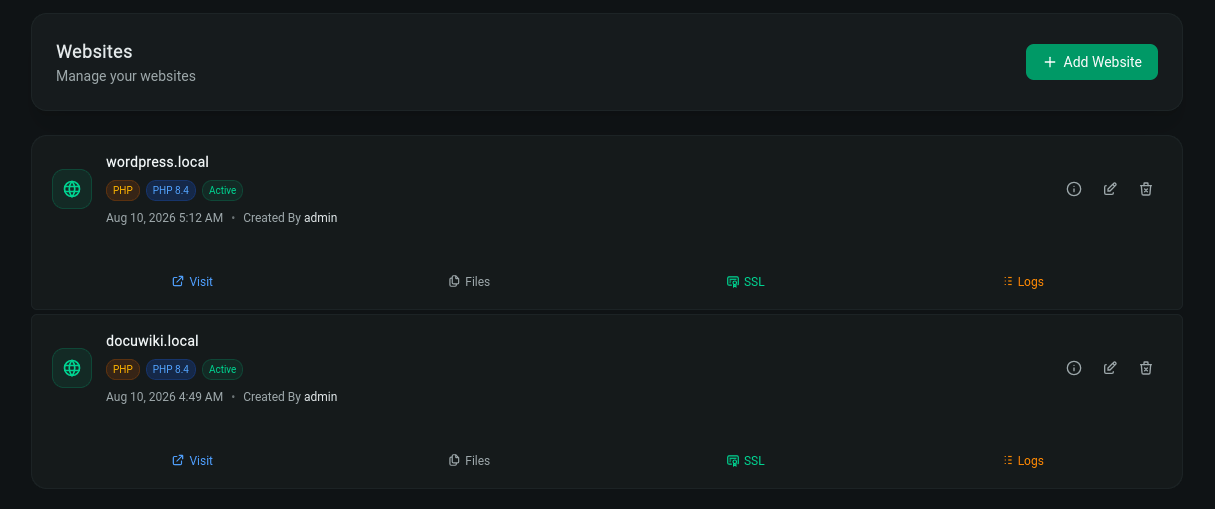
Website List
Each website appears as a card showing:
- Domain - the primary domain for the site
- Badges - the type (PHP, Static, Node.js, etc.), the version if applicable, and the current status
- Created - when the site was created and by which panel user
- Actions - quick buttons for common tasks
The status badge shows Active when the site is enabled, or Inactive when it is not serving traffic.
Actions on a Card
Every website card has four quick actions:
- Visit - open the site in a new tab
- Files - browse the site's document root in the file manager
- SSL - open the SSL certificate settings for this site
- Logs - view the web server error and access logs
The three icons on the right of the card are:
- Info - view all details and configuration paths for the site
- Edit - open the edit drawer
- Delete - remove the website
Creating a Website
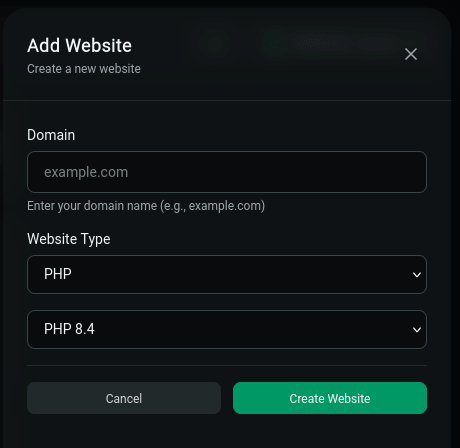
Click Add Website at the top of the page. The drawer asks for:
- Domain - the domain name (for example,
example.com) - Website Type - the technology stack for the site (PHP, Static, Node.js, and others)
- Version - shown when the selected type has multiple versions available, such as PHP 8.1 through 8.5
Once you confirm, NexPanel:
- Creates the document root under the system user's home directory
- Sets up a PHP-FPM pool if the type uses PHP
- Writes the Nginx or Apache configuration
- Adds a default
index.htmlfile
The site is live as soon as the configuration reloads, usually within a second or two.
Editing a Website
Click the edit icon on any website card. The edit drawer has multiple sections.
General Settings
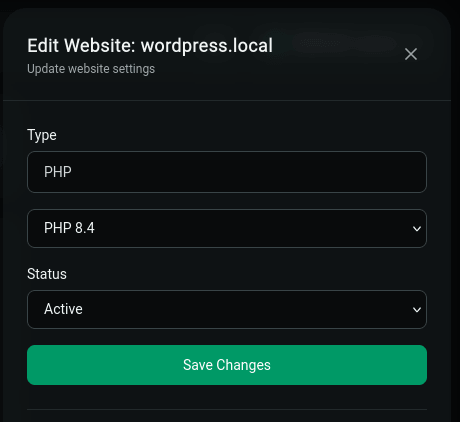
- Website Type - read only
- Version - change the version if the type supports multiple
- Status - set the site to Active or Inactive
Suspending (Inactive) a site leaves all files in place but stops the web server from serving it. Use this instead of deleting when you want to take a site offline temporarily.
PHP-FPM Configuration
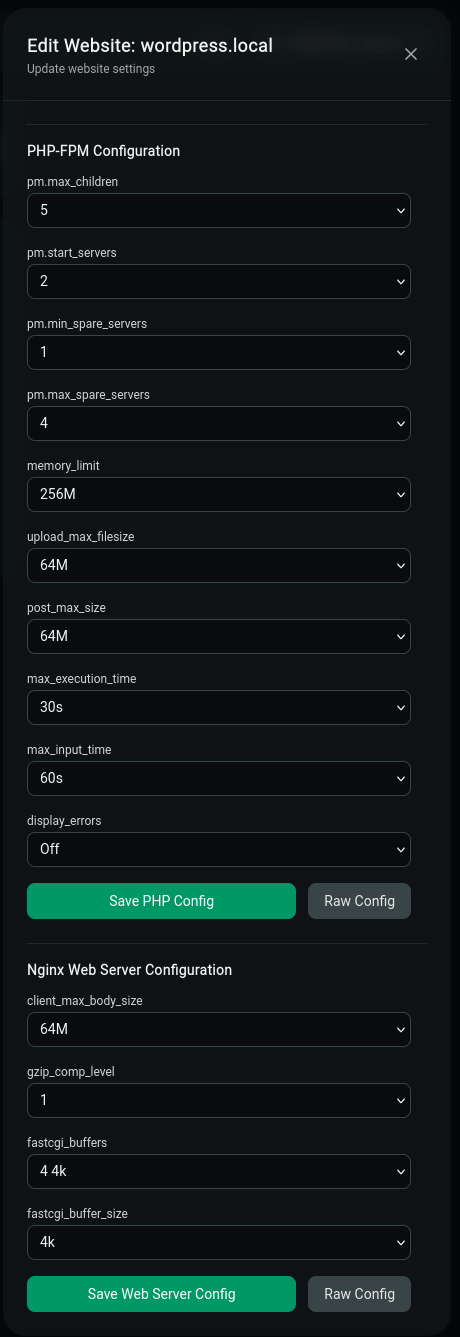
If the site uses PHP, you can tune its PHP-FPM pool settings individually. NexPanel exposes the most common options:
pm.max_childrenpm.start_serverspm.min_spare_serverspm.max_spare_serversmemory_limitupload_max_filesizepost_max_sizemax_execution_timemax_input_timedisplay_errors
Each field has a dropdown of common values. For anything not covered by the presets, use Raw Config to edit the full pool configuration directly.
Web Server Configuration
For Nginx:
client_max_body_sizegzip_comp_levelfastcgi_buffersfastcgi_buffer_size
For Apache, equivalent options are shown.
Use Raw Config to edit the full server block or virtual host if you need directives not exposed in the UI.
Saving Changes
Each section has its own Save button. Saving:
- Writes the new configuration
- Reloads the web server if validation passes
Website Information
Click the info icon to open a read-only summary of the website:
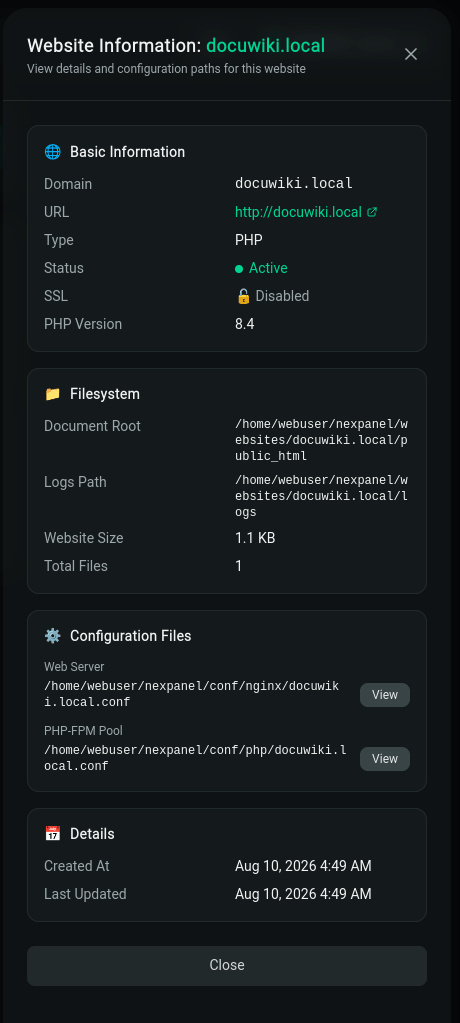
- Basic Information - domain, URL, type, status, SSL status, PHP version
- Filesystem - document root, logs path, total size, file count
- Configuration Files - paths to the Nginx/Apache config and the PHP-FPM pool file, with View buttons that open the file in a viewer
- Details - creation date and last update
Use this when you need to SSH into the server or when you want to copy a config path for support.
Viewing Logs
Click the Logs action on any website to view its error and access logs.
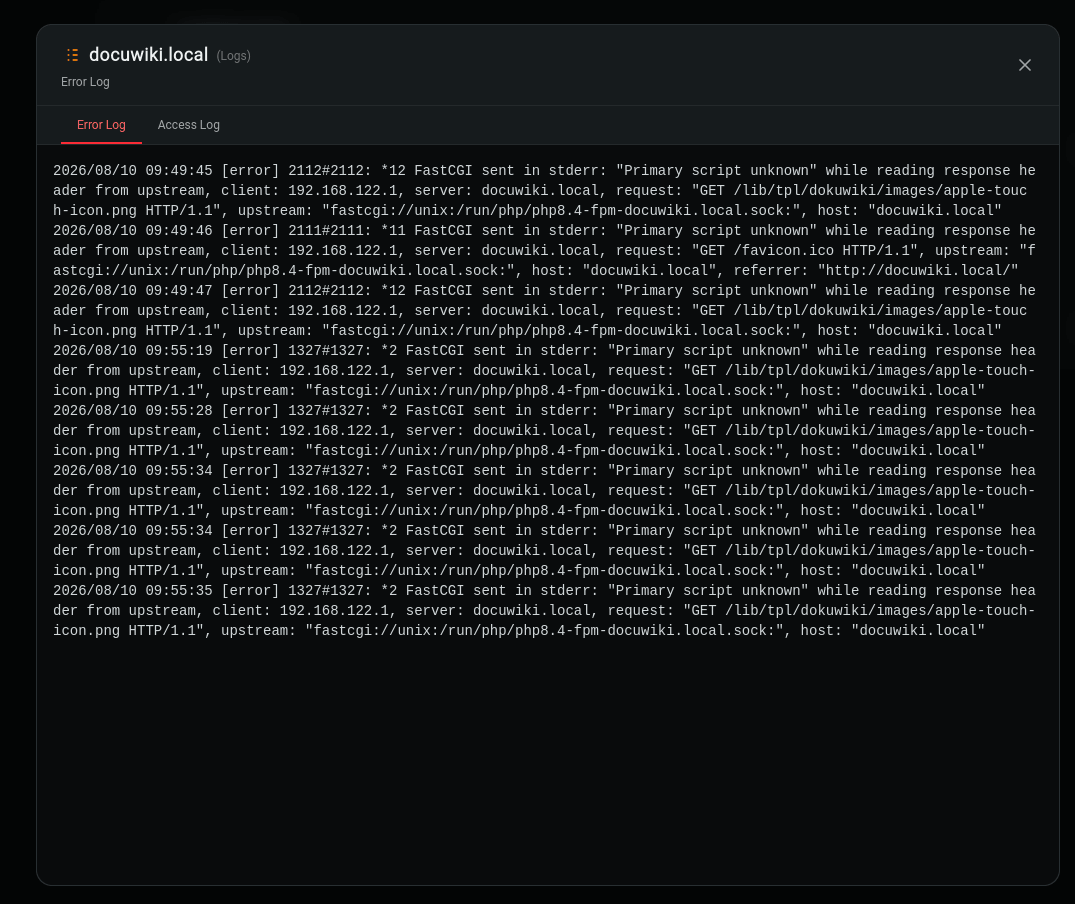
The log viewer has two tabs:
- Error Log - PHP errors, web server errors, and FastCGI issues
- Access Log - every request served by the web server
Logs are shown newest-last, matching the on-disk log format. Use this view to debug 500 errors, missing files, redirect loops, or unexpected 404s.
Logs are also written to disk. The exact paths are listed in the website's Info drawer.
Deleting a Website
Click the delete icon on a website card. NexPanel asks for confirmation before removing the site.
Deleting a website:
- Removes the web server configuration
- Removes the PHP-FPM pool file
- Does not delete the website's database
Warning
Deleting a website is not reversible from the panel. If you only want to take the site offline, change its status to Inactive instead.
Common Tasks
- Point a domain - set the domain's DNS to your server's IP, then create the website in the panel
- Change PHP version - edit the website and pick a different version from the dropdown
- Add SSL - open the SSL action on the website card and follow the SSL guide
- Debug a 500 error - open the logs, check the error log, and look for PHP or FastCGI messages