
System Updates
The System Updates page lists available OS package updates and lets you install them without opening a terminal. Security patches are separated from regular updates so you can apply the critical ones first without pulling in larger changes.
Open System Updates in the panel sidebar. The page is admin only.
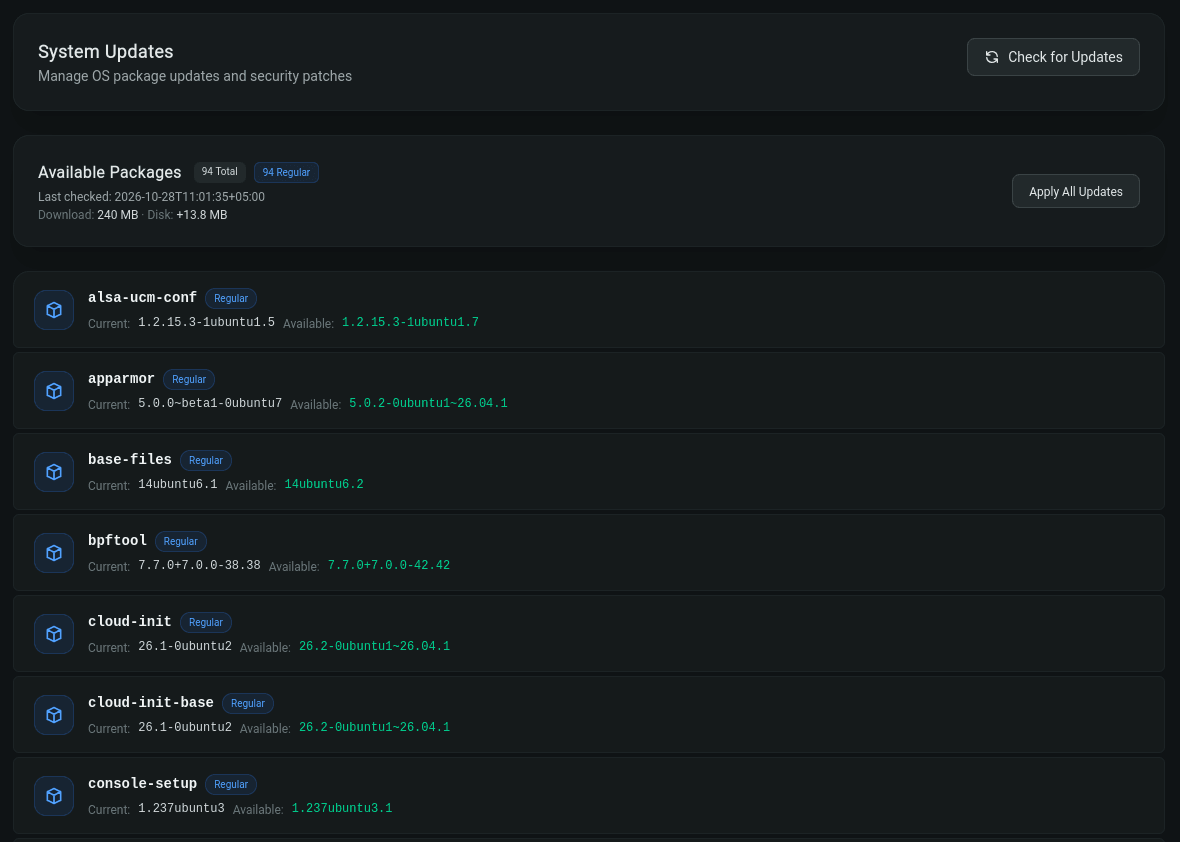
Available Packages
The top panel shows what is pending:
- 90 Total - every package with an update available
- 3 Security - packages that contain security fixes
- 87 Regular - packages with non-security updates
Last checked shows when the package lists were last refreshed. If it is empty, no check has run yet.
Two buttons to the right:
- Apply Security Updates - installs only the security packages
- Apply All Updates - installs every pending update
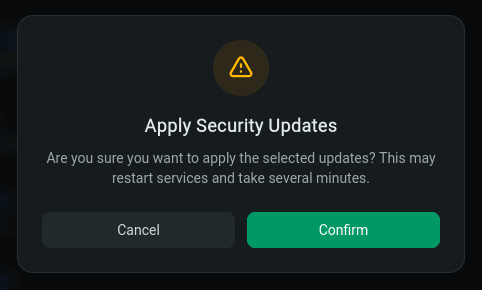
Clicking either button opens a confirmation modal. Applying security updates is the safer choice. Applying all updates pulls in every change, which can include larger or riskier packages.
Checking for Updates
Click Check for Updates in the top right of the page.
This runs apt-get update on the server, refreshing the package index. It takes a few seconds. When it finishes, the counts and list update to reflect the current state.
If another process on the server holds the apt lock, the check fails and a toast shows the reason. Wait for that process to finish and try again.
Applying Updates
When you confirm in the modal, the panel starts the update in the background and the modal changes to show progress. The Confirm button becomes Processing until the job finishes.
While the job is running, do not close the tab. When it finishes:
- On success - the modal closes, the page reloads, and a toast confirms the update completed
- On failure - the modal closes without reloading, and a toast shows the error
Updates can take several minutes depending on how many packages are involved and how fast the server is.
Warning
Do not start an update while another update is already running. Only one update can run at a time. The panel will block the second attempt with an error.
Reboot Required
When a kernel or system package is installed, the server may need a reboot before the change takes effect. When that happens, a banner appears on the page with a Reboot button.
Clicking Reboot schedules a reboot in 1 minute. The delay gives you time to save other work and for the browser to receive the response.
The page will lose connection when the server reboots. Wait a minute or two, then reload. The panel should come back on its own.
Warning
A reboot restarts every service on the server and drops all active connections, including any websites or databases using it. Make sure anyone affected knows before you click Reboot.
Package List
Below the summary panel, every pending package appears as a row:

Each row shows:
- Package name
- Badge -
SecurityorRegular - Current version - what is installed now
- Available version - what the update would install
Security rows have a shield icon. Regular rows have a box icon. The badge is the quickest way to see what kind of update it is.
Notes
- Only admins can access this page
- Updates run in the background. The server applies them directly through apt
- Only one update job can run at a time
- Reboots are scheduled with a 1 minute delay