
SSL Certificates
The SSL Certificates page lets you issue, view, and revoke SSL certificates for your websites. NexPanel supports three certificate types: Let's Encrypt, Custom, and Self-Signed.

Certificate List
Each certificate row shows:
- Website - the domain the certificate is issued for
- Type badge - shows the type of certificate issued
- Status - Active, Expiring, or Expired
- Expires - when the certificate expires
- Issuer - who issued the certificate, shown as
issuer <domain>on self-signed and Let's Encrypt, or the CA name on custom certificates
Each row has two icons on the right:
- Info - view the certificate details: status, issuer, validity dates, covered domains and paths
- Delete - remove the certificate from the server
Issuing a Certificate
Click Issue Certificate. The drawer asks you to choose the website and certificate type.
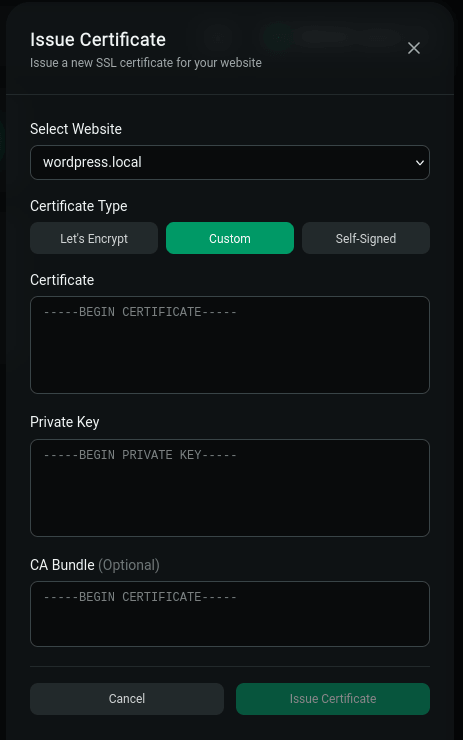
Select Website
Pick the website the certificate should cover. The panel automatically checks that the domain's DNS points to this server.
- If the DNS check passes, all three certificate types are available
- If the DNS check fails, only Custom and Self-Signed are available
The DNS check prevents trying to obtain a Let's Encrypt certificate for a domain that does not point to your server, which would fail anyway.
Certificate Types
Let's Encrypt
Free, trusted certificates issued automatically. Browsers trust them out of the box.
NexPanel asks for:
- Email - used by Let's Encrypt for expiry reminders and account recovery
Let's Encrypt certificates are valid for 90 days. NexPanel renews them automatically before they expire.
Note
Let's Encrypt has rate limits. If you issue and delete certificates repeatedly for the same domain, you may hit them. Avoid testing with production domains.
Custom
Bring your own certificate, purchased from any commercial CA or issued by your own internal CA.
NexPanel asks for:
- Certificate - the PEM-encoded certificate
- Private Key - the matching private key
- CA Bundle (optional) - intermediate certificates, if your provider supplies them separately
Paste each block including the -----BEGIN ... ----- and -----END ... ----- lines.
Custom certificates are not renewed automatically. When they expire, you need to issue a new one and update it here.
Self-Signed
Generated by NexPanel on the server. Browsers do not trust self-signed certificates, so visitors see a certificate warning before the site loads.
Self-signed certificates are useful for:
- Development and staging servers
- Internal tools that only you and your team access
- Testing HTTPS configuration before obtaining a real certificate
NexPanel asks for:
- Validity - how long the certificate should last. Options are 1, 3, 5, or 10 years
Issuing
Once you fill in the required fields and click Issue Certificate, NexPanel:
- Generates or installs the certificate files
- Updates the web server configuration for the website
- Reloads the web server
HTTPS is active as soon as the reload completes, usually within a second.
Renewal
- Let's Encrypt - renewed automatically by NexPanel before expiry
- Custom - manual. Reissue from your provider and update the certificate here before it expires
- Self-Signed - manual. Issue a new one when it expires
The certificate list shows the expiry date for each certificate so you can keep track.
Deleting a Certificate
Click the delete icon on a certificate row. NexPanel asks for confirmation.
Deleting a certificate:
- Removes the certificate and key files
- Reverts the website to HTTP only
- Does not affect website files or databases
Issue a new certificate at any time to re-enable HTTPS.
Warning
Deleting a Let's Encrypt certificate and immediately reissuing it counts against Let's Encrypt rate limits. If you need to reconfigure a certificate, prefer editing over deleting and reissuing.
Common Tasks
- Enable HTTPS on a new site - create the website first, point its DNS, then issue a Let's Encrypt certificate
- Move from self-signed to trusted - point the DNS, then issue a Let's Encrypt certificate. The panel replaces the existing one
- Use a wildcard certificate - bring it as a Custom certificate and install it on each site that needs it