
Installation
Installing NexPanel takes about 3-5 minutes on a fresh server.
Before You Begin
Make sure your server meets the prerequisites. You need:
- Root access to the server
- A fresh OS installation
- Outbound network access to
nexpanel.devanddl.nexpanel.dev
Step 1: Choose a Version
Pick which release to install. If you are unsure, use the default.
| Choice | Best for | Command flag |
|---|---|---|
| Stable (default) | Most users. Safest. Tested releases. | (no flag needed) |
| Specific version | Reproducible installs, pinned environments | --version v0.2.27 |
The v prefix is optional. 0.2.27 and v0.2.27 are treated the same.
If a version does not exist on the download host, the installer stops and tells you before anything is installed.
Step 2: Run the Installer
Run as root on a fresh server.
For stable (recommended):
curl -sSL https://nexpanel.dev/install.sh | bash
For a specific version:
curl -sSL https://nexpanel.dev/install.sh | bash -s -- --version v0.2.28
Note
The -s -- separates bash's own arguments from the script's arguments when piping. If you download the script first and run it as ./install.sh --version v0.2.27, you do not need -s --.
The installer will:
- Detect your OS and architecture
- Validate that your OS version is supported
- Verify the requested version exists on
dl.nexpanel.dev - Download the binary
- Install base dependencies
- Register and start the panel service on port
2020
The whole process takes about 3 to 5 minutes depending on your server speed.
Verify the Installation
Check that the panel service is running:
systemctl status nexpanel
Step 3: Complete Setup in the Browser
Once the installer finishes, open:
http://your-server-ip:2020/setup
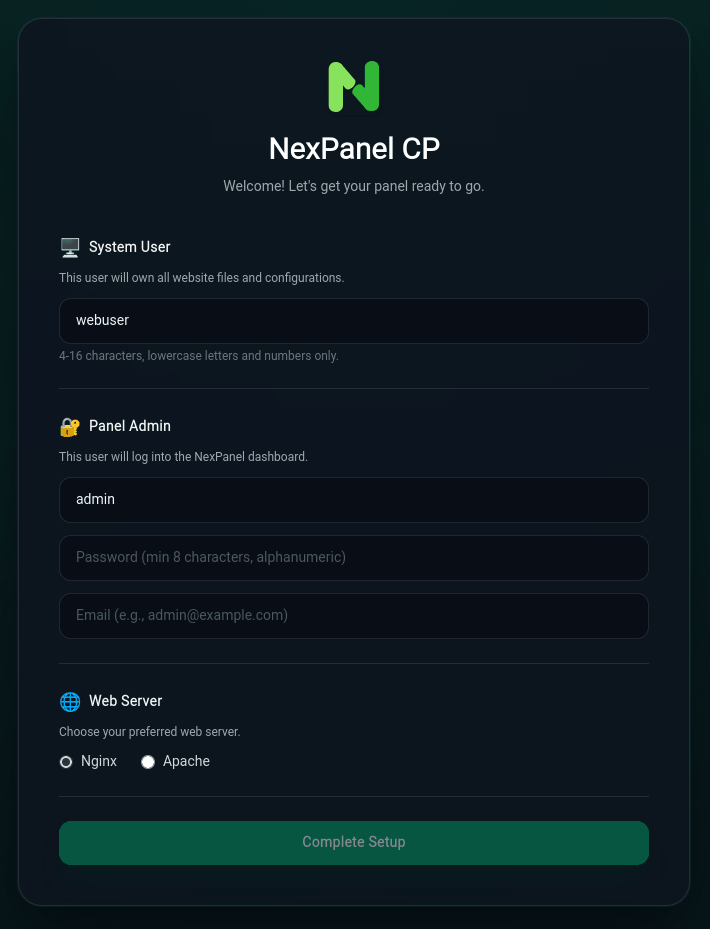
The setup wizard asks for:
- System User - the OS-level user NexPanel will use to create websites and manage files on your server
- Panel Admin - username and password to log in to the panel. This is separate from the system user and only controls the panel interface
- Web Server - choose Nginx or Apache
Once you submit the form, NexPanel installs your chosen web server, configures the panel, and takes you to the login page.
Warning
Use a strong password for the panel admin. This account controls the entire panel and, through it, the system user.
Troubleshooting
Installer fails to download
Check that your server has outbound access to nexpanel.dev and dl.nexpanel.dev. If you are behind a firewall, see the network requirements.
Version not found
If the installer reports that a version does not exist, verify:
- The version string is correct (
v0.2.27, notv0.2.27.1unless that exact version exists) - The release has been published
Browse available releases at dl.nexpanel.dev.
Panel not reachable on port 2020
Confirm the panel service is running:
systemctl status nexpanel
Check the panel logs:
journalctl -u nexpanel -n 100 --no-pager
And make sure port 2020 is open in your firewall if a firewall is enabled:
ufw status
Next Steps
- Panel Settings - configure your panel
- Create Website - create your first website
Upgrade
- Upgrade NexPanel - keep your panel up to date