
Two-Factor Authentication
Two-Factor Authentication (2FA) adds a second step to panel login. Even if someone knows your password, they cannot sign in without the code from your authenticator app.
2FA is configured per panel user. Each user manages their own 2FA from their profile page.
Enabling 2FA
Open your profile page and find the Two-Factor Authentication section. Click Enable.
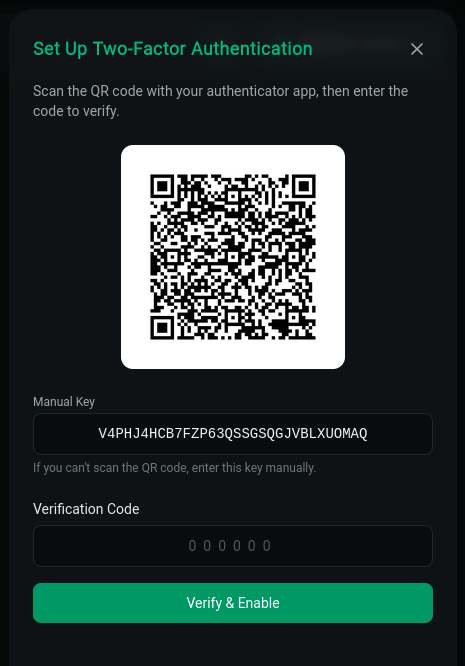
The setup drawer:
- Shows a QR code
- Asks for the 6-digit code from your authenticator app
Scanning the QR Code
Open any TOTP-compatible authenticator app on your phone and scan the QR code. Common options:
- Google Authenticator
- Authy
- FreeOTP+ (F-droid store)
The app adds an entry for your panel account, usually labeled with the panel's hostname and your username.
If your phone cannot scan the QR code, copy the secret key shown below the code and enter it manually in your authenticator app.
Confirming with a Code
Enter the 6-digit code from your authenticator app into the setup drawer and confirm. NexPanel verifies the code against the shared secret and enables 2FA on your account.
Until the code is confirmed, 2FA is not active. If you close the drawer without confirming, nothing changes.
Recovery Codes
When 2FA is enabled, NexPanel generates eight recovery codes.
Each code can be used once in place of a 6-digit authenticator code during login. Save them somewhere safe. Options:
- Print them and keep them safe
- Store them in a password manager
- Write them down and keep them with other important documents
The codes are shown once. If you lose them and lose access to your authenticator app, an admin must disable 2FA on your account before you can log in again.
Warning
Do not store recovery codes on the same device as your authenticator app. If that device is lost or wiped, you lose both.
Using 2FA at Login
After enabling 2FA, logging in becomes two steps:
- Enter your username and password
- Enter the 6-digit code from your authenticator app
If the code is not available, use a recovery code instead. Each recovery code works once and is then consumed.
Disabling 2FA
Open your profile page and click Disable next to the 2FA section.
Admin Reset
If a panel user loses access to both their authenticator app and their recovery codes, an admin can disable 2FA on their account from the Panel Users page.
The user can then log in with just their password and re-enroll.
Warning
Only reset 2FA after verifying the user's identity through another channel (voice call, known internal contact). Disabling 2FA on an account removes a critical security layer.
Notes
- 2FA requires an active license
- NexPanel uses TOTP, the same standard used by most authenticator apps
- Recovery codes are hashed in the panel database. They cannot be retrieved after they are shown
- If you change devices, disable 2FA on the old device first, then re-enable on the new one