
File Manager
The File Manager gives you a full file browser inside the panel. It works on each website's document root and any other managed directory, so you do not need to open SSH for everyday file operations.
Layout
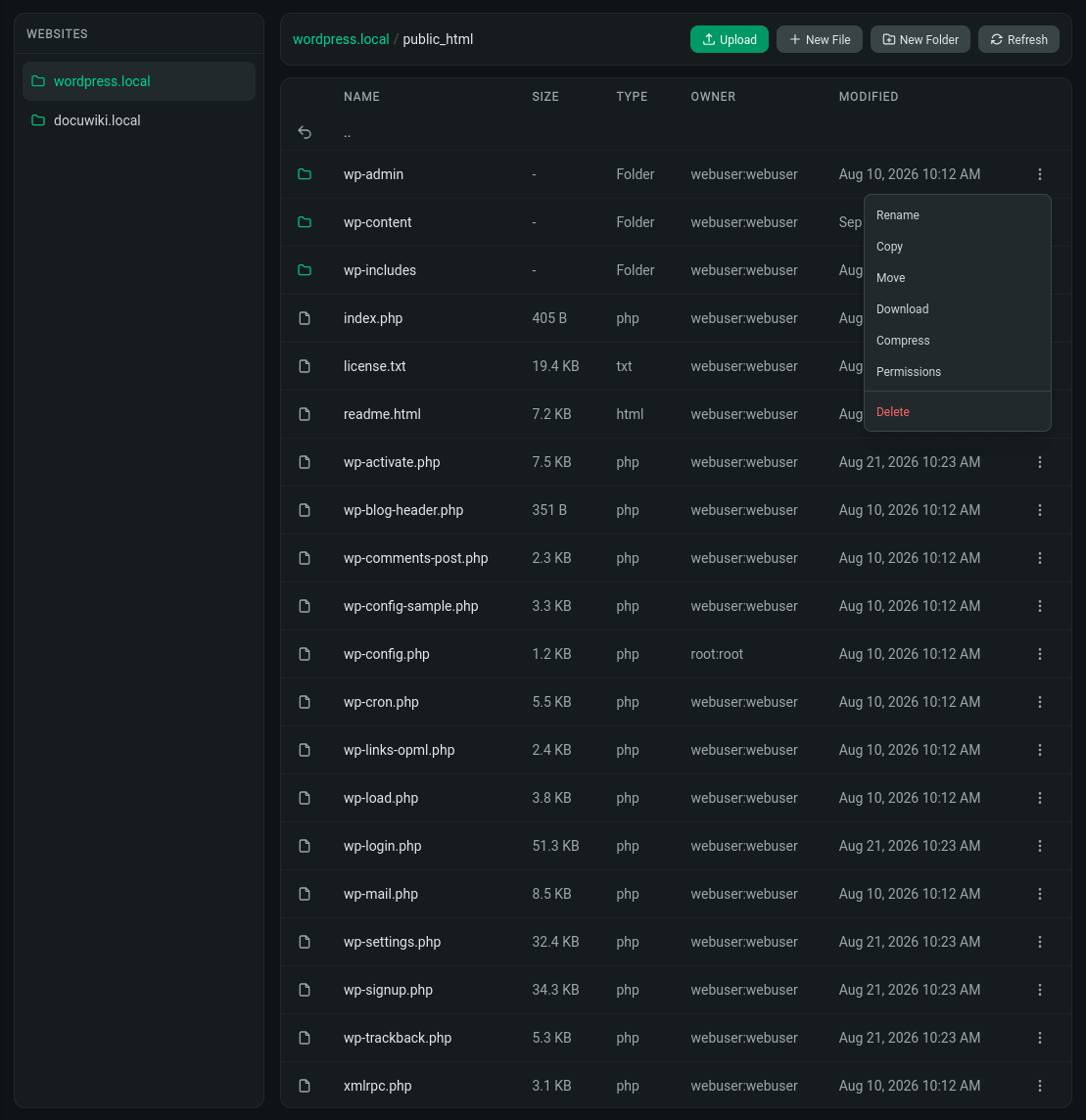
The page is split into two parts:
- Left sidebar - a list of websites. Pick one to browse its document root
- Right pane - the file listing for the current directory
The header shows the current path, for example wordpress.local / public_html.
Browsing
The file list shows, for each entry:
- Name - file or folder name
- Size - file size in human-readable units. Folders show
- - Type -
Folder,php,html,txt, and other file types - Owner - the user and group that own the file
- Modified - last modification date
Click a folder to open it. Click a file to open it in a read-only viewer.
Click the back arrow at the top of the list to go up one level.
Header Actions
At the top of the file listing:
- Upload - upload a file, or a zip archive
- New File - create a file with its content
- New Folder - create an empty folder
- Refresh - reload the directory listing
Uploading
You can upload a .zip archive. You can then extract its content in place and remove the archive after extraction.
File and Folder Menus
Each row has a three-dot menu on the right with actions. Folder and file menus differ slightly.
Folder Menu
- Rename - change the folder name
- Copy - copy the folder to another path
- Move - move the folder to another path
- Download - download the folder as a zip archive
- Compress - create a
.ziparchive of the folder - Permissions - change file permissions
- Delete - remove the folder and everything inside it
File Menu
- Edit - open the file in the built-in editor
- Rename - change the file name
- Copy - copy the file to another path
- Move - move the file to another path
- Download - download the file
- Compress - create an archive containing the file
- Permissions - change file permissions
- Delete - remove the file
Editing Files
Click a file to open it in read-only mode, or use Edit from the file menu to open it in the editor.
Save writes the file back to disk with the original ownership and permissions.
Tip
Editing config files like wp-config.php from the panel is convenient, but be careful with PHP files that define WordPress plugins or themes. A syntax error takes the site down until it is fixed.
Permissions
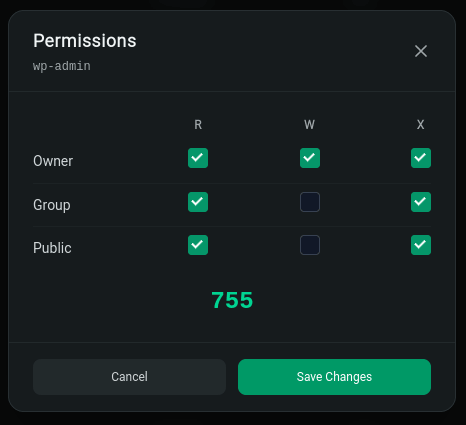
The Permissions action opens a modal for changing the file or folder mode. It shows each permission (read, write, execute) for the owner, group, and others as checkboxes.
Warning
Incorrect permissions break websites. As a general rule, folders should be 755 and files 644. Only use 777 when you have no other option, and revert to 755 or 644 as soon as possible.
Compression and Extraction
Compress creates a new archive next to the selected file or folder.
.zip- widely compatible, best for downloads
To extract an archive, upload it and extract it in the panel. Extraction always happens in the current directory.
Deleting
Delete removes the selected file or folder. Folders are deleted recursively, including everything inside.
Deleted files are not sent to a trash folder. They are gone.
Danger
Deleting files from the panel is permanent. Back up anything you are not sure about before removing it.