
Panel Settings
The Panel Settings page controls how your NexPanel instance behaves. Settings are organized into tabs on the left side.
To open it, log in to the panel and go to Settings in the main menu.
General
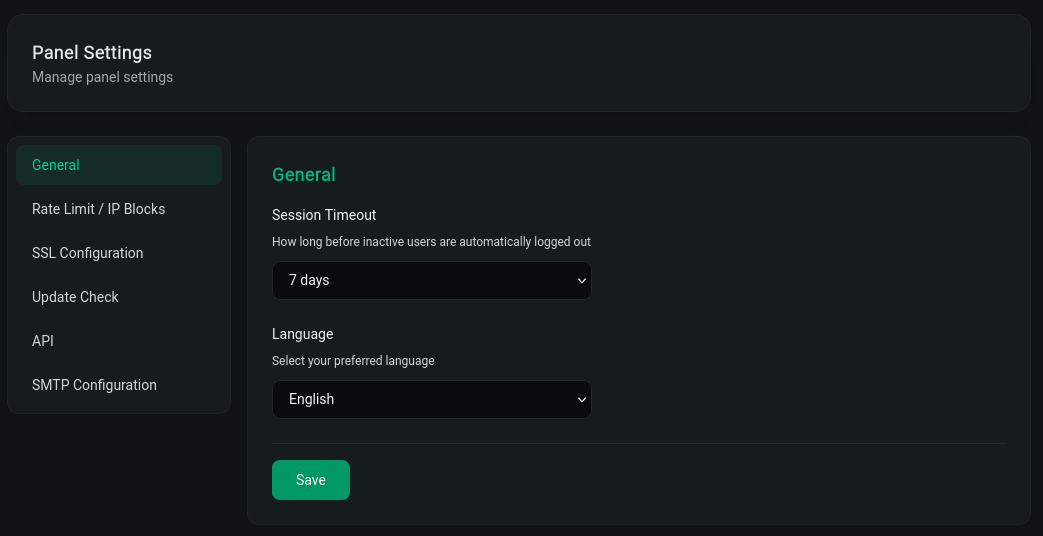
The General tab contains the basic panel-wide settings.
Panel Session Timeout
How long an inactive panel session stays logged in before it expires. When it expires, the user must log in again.
Pick a value based on your security needs:
- Shorter timeout - more secure, more logins
- Longer timeout - more convenient, less secure
Panel Language
The language used for the panel interface. This applies to all panel users.
Rate Limit / IP Blocks
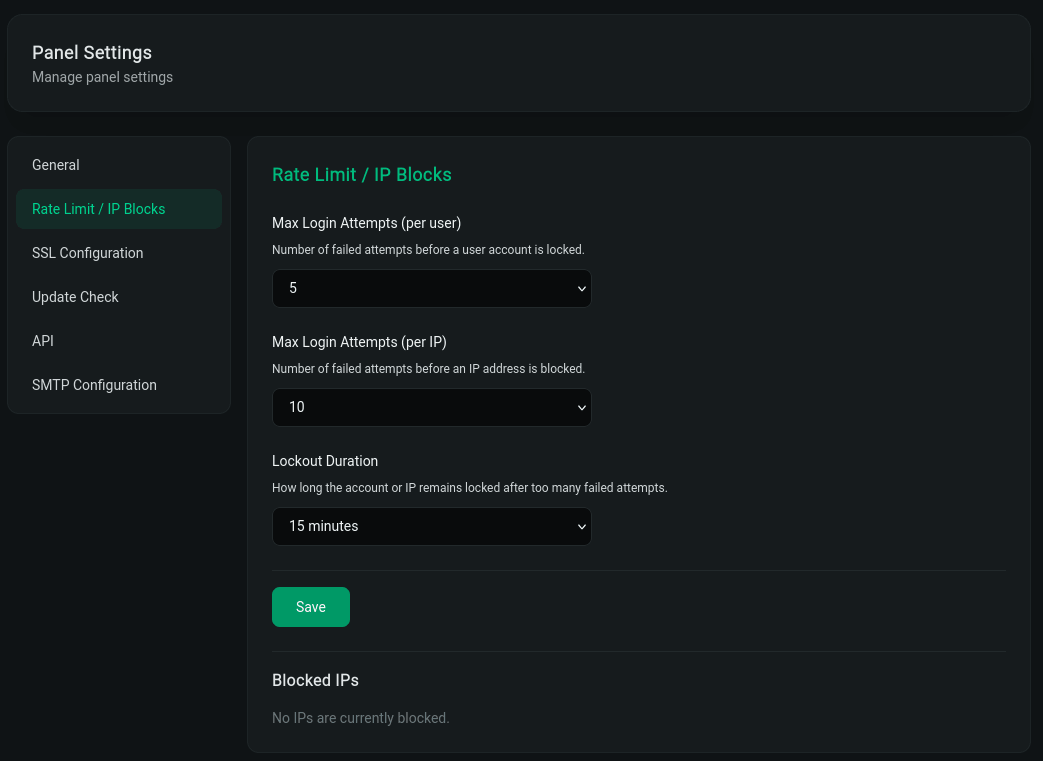
This tab controls login throttling and IP-based blocking.
Max Login Attempts (per user)
How many failed login attempts a single user can make before the account is temporarily locked. A lower number is more secure but risks locking out legitimate users who mistype their password.
Max Login Attempts (per IP)
How many failed login attempts can come from a single IP address before it is blocked. This protects against brute-force attacks that try many usernames from one source.
Lockout Duration
How long a locked account or blocked IP stays locked before it is allowed to try again.
Blocked IPs
A list of IP addresses that are currently blocked from accessing the panel. You can see when each IP was blocked, the reason, and remove entries manually if a legitimate user was locked out by mistake.
SSL Configuration
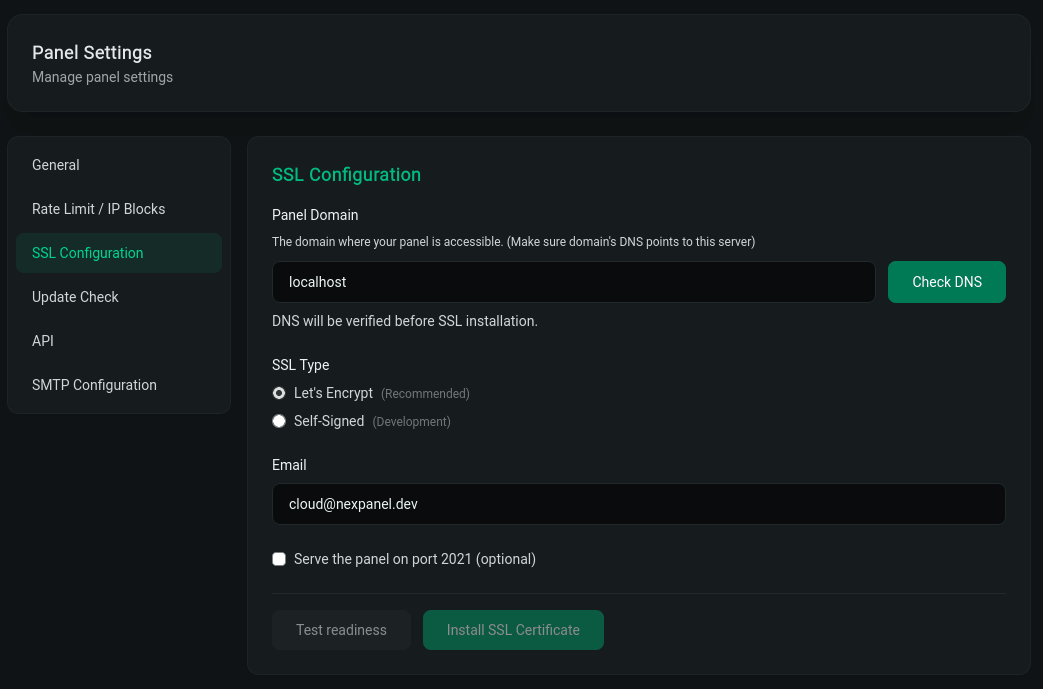
This tab manages the SSL certificate used for the panel itself. It does not affect SSL for the websites you host.
Panel Domain
The domain name used to access the panel. When you enter a domain, NexPanel verifies that it points to your server's IP before enabling SSL. If DNS is not set up correctly, the check will fail.
SSL Type
Choose how the panel obtains its certificate:
- Self-signed - works immediately, but browsers show a certificate warning
- Let's Encrypt - a trusted certificate, but requires a valid domain and a reachable DNS record
Used by Let's Encrypt for expiry notifications and account recovery. Only needed when using a Let's Encrypt certificate.
Port
Once you have the certificate, you can access the panel using the domain. If you also need a port to access it, check the box. This is optional.
Update Checks
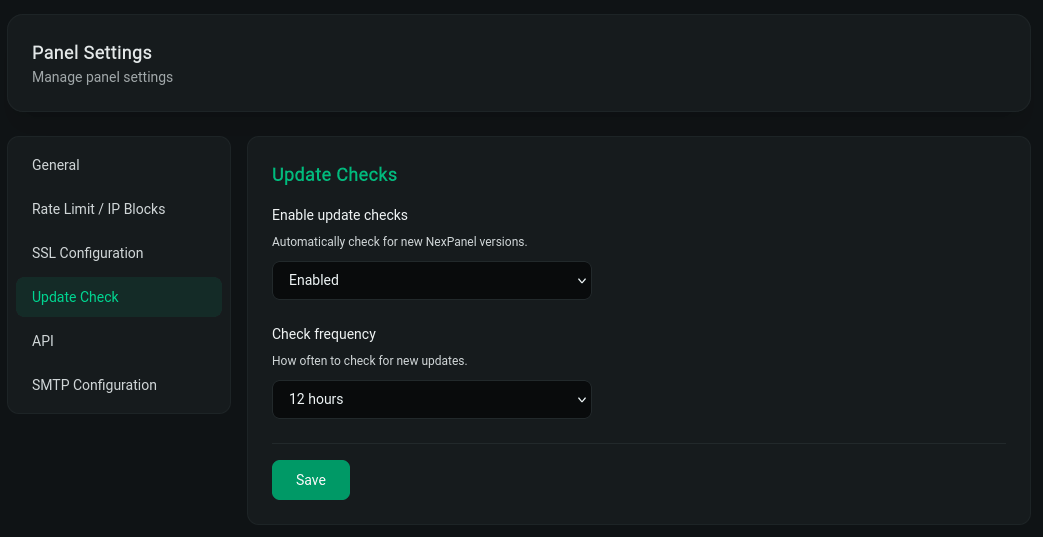
The Update Checks tab controls whether NexPanel checks for new releases.
Enable Update Checks
When enabled, the panel periodically checks for new versions and notifies you when an update is available. No updates are installed automatically. You still choose when to upgrade.
Check Frequency
How often the panel checks for updates. Daily is usually enough. Hourly is only useful if you want to catch releases immediately.
SMTP Configuration
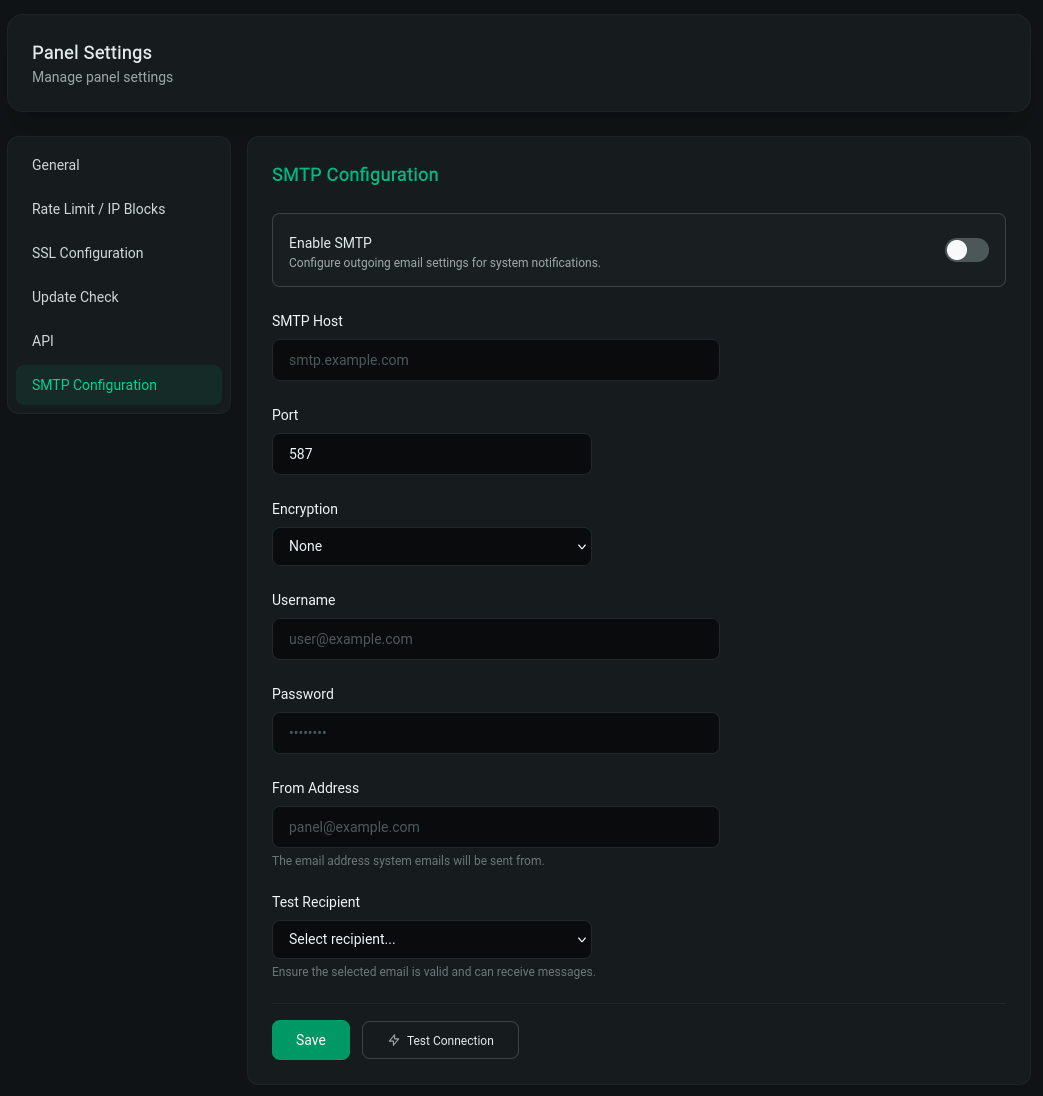
NexPanel uses SMTP to send alerts, and notifications. Configure your own mail server or a transactional email provider here.
Required Fields
- SMTP Host - the mail server hostname
- SMTP Port - usually
587(STARTTLS) or465(SSL) - Encryption - choose the encryption method your provider requires
- Username - the SMTP account username
- Password - the SMTP account password
- From Address - the email address NexPanel sends from
Test Email
After saving the SMTP settings, use the Test Connection button to confirm everything works. Choose a recipient address and NexPanel will attempt to send a test message. If it fails, the error message will tell you what went wrong.
Tip
Most email providers require an app-specific password rather than your account password. Check your provider's documentation before filling this in.